Start with ESP32-CAM
I use Arduino IDE test my new toy, an ESP32-CAM, now I’ll show you how
to start with it.
First of all, we need get ready our hardware:
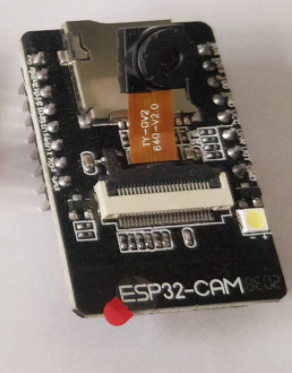
1、An ESP32-CAM dev board
2、A camera, like OV2640 or OV7670, I use the OV2640 for test
(siehe 图片1)
Ps:I think the OV2640 for test, the OV7670 better for projects

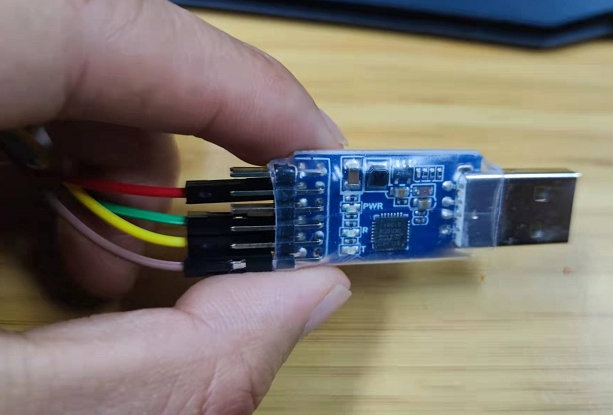
3、TTL to USB module
(siehe 图片2)

Next step, software part:
Arduino IDE(https://www.arduino.cc/en/software/)
There are Arduino IDE for Windows, for Linux and for Mac OS

Step 3
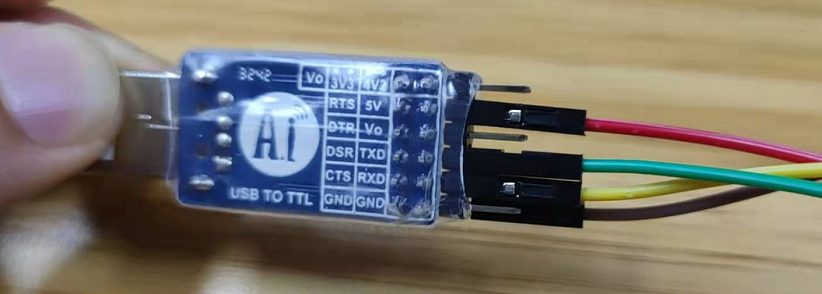
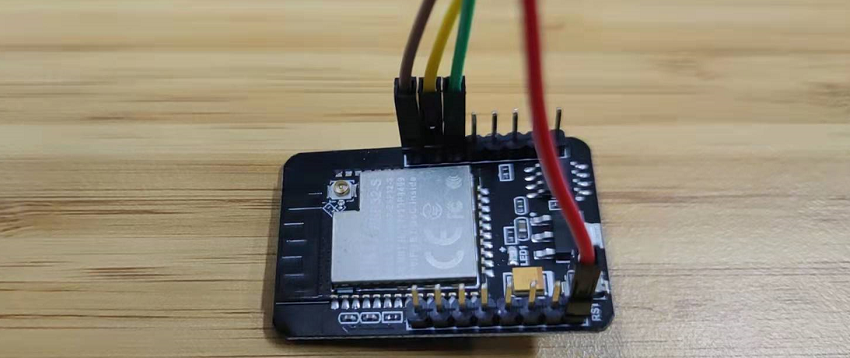
Put your ESP32-CAM link to TTL to USB module
TTL to USB 5V link ESP32-CAM 5V
TTL to USB GND link ESP32-CAM GND
TTL to USB TXD link ESP32-CAM U0R
TTL to USB RXD link ESP32-CAM U0T
Like this:
(siehe 图片3、4)

Step 4
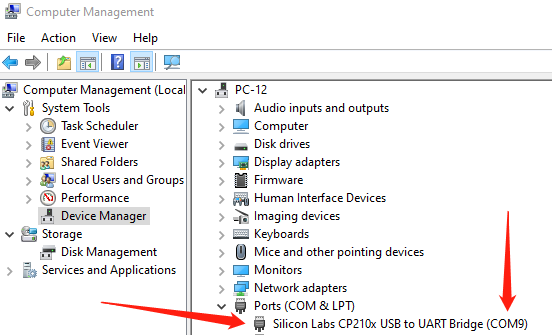
Take your TTL to USB module into USB interface of your computer, and
open your PC Manage——Device Manager——Ports, remember your COM
(siehe 图片5)

Step 5
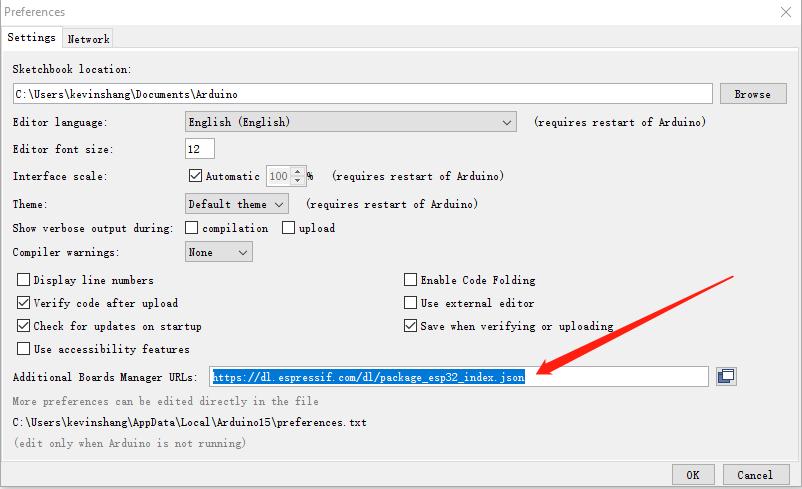
Open your Arduino IDE, File——Preferences, take
https://dl.espressif.com/dl/package_esp32_index.json into Additional
Boards Manager URLs
(siehe 图片6)

Step 6
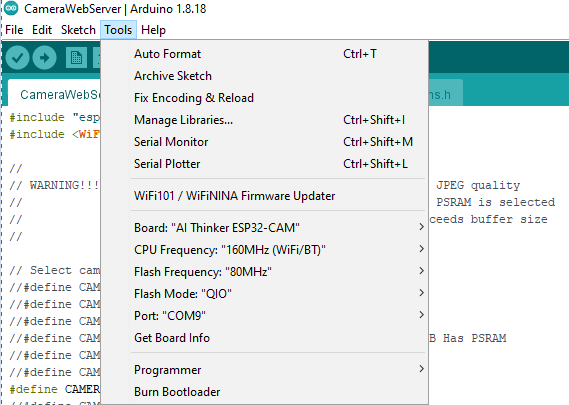
Click Tools, find Board, choose AI Thinker ESP32-CAM, find CPU
Frequency, choose 160MHz(WiFi/BT), find Port, choose your own COM(in
Step 4)
(siehe 图片7)

Step 7
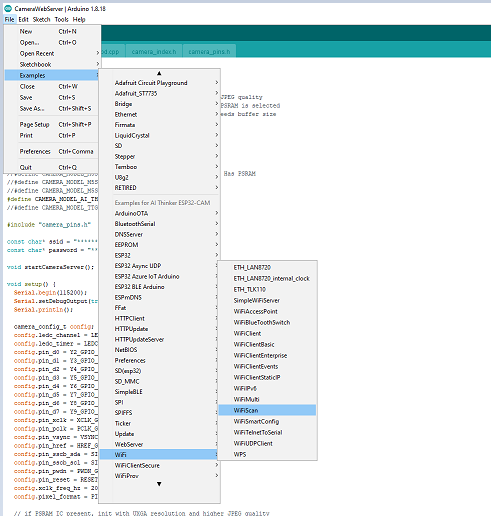
Click File——Examples——WiFi——WiFiScan
(siehe 图片8)

Step 8
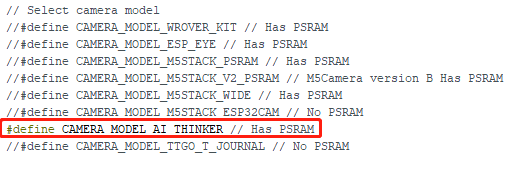
Remove // in front of #define CAMERA_MODEL_AI_THINKER
(siehe 图片9)

Step 9
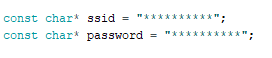
Put your ssid and password into here
(siehe 图片10)

Step 10
Link IO0 and GND of your ESP32-CAM(important)
Upload the code to your ESP32-CAM dev board
Remove IO0 to GND jumper wire
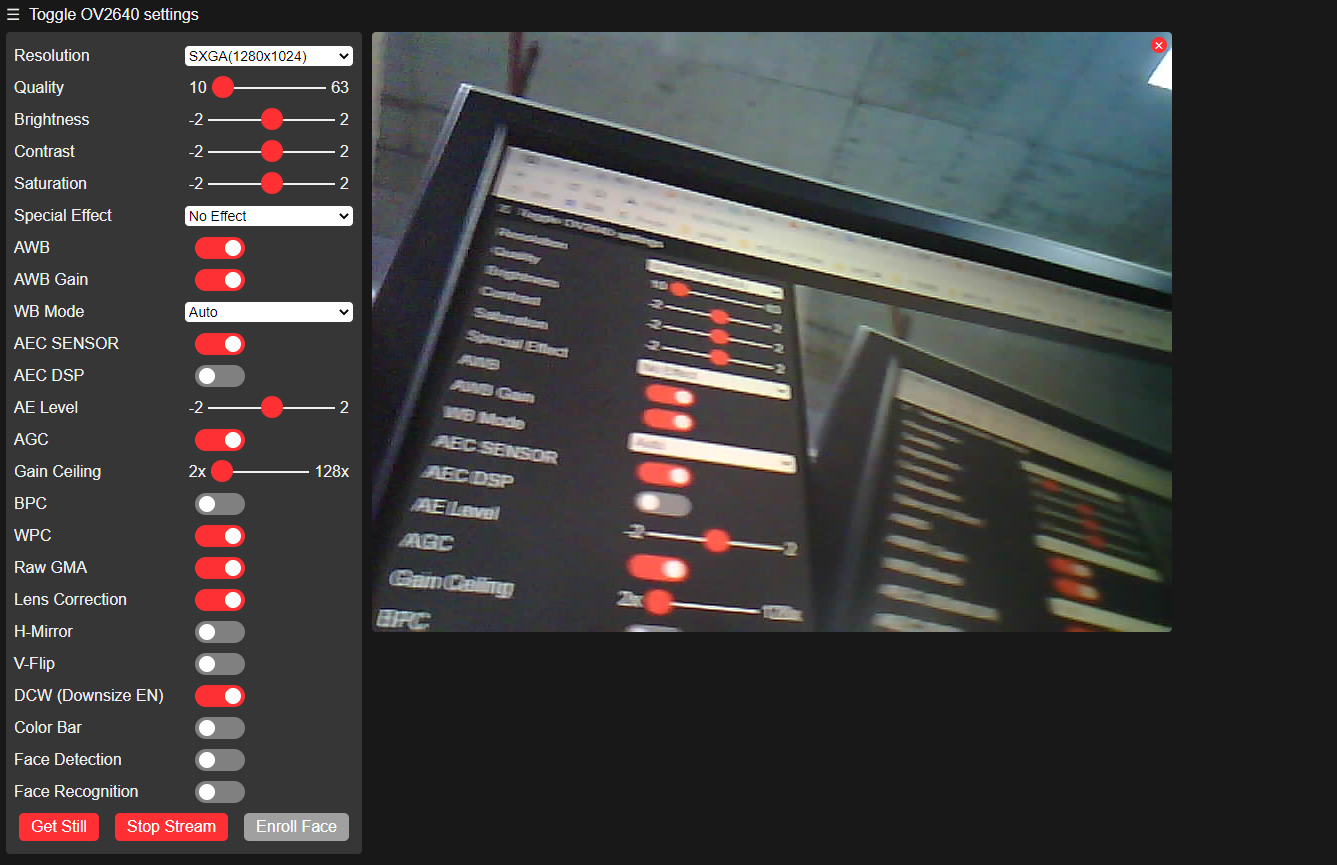
Open Tools——Serial Monitor, you can find a IP address, copy it and paste
in your browser
(siehe 图片11)

You can use your camera now, if you want Face Detection, Resolution must
be CIF(400x296)
Enjoy it and share it to your friends
Angehängte Dateien: